# Fixing Shopify SEO issues
> A practical guide to fixing Shopify
# Fixing Shopify SEO Issues
Published: 15 September 2020
## Shopify Technical SEO Issues and Solutions
### Fixing and overcoming
Running an eCommerce business will always have its own set of challenges, and Shopify stores are no exception. With more than 5.6 million active stores and $300 billion in GMV processed through the platform in 2024, Shopify has cemented itself as the dominant eCommerce platform globally. It's simple to set up and its suitability for online stores makes it incredibly appealing for small businesses right through to enterprise brands.
Like any platform though, Shopify has its quirks. For anyone looking to get real SEO performance out of a Shopify site, here are the technical problems to watch for and how to work around them.
What we'll cover:
- Editing robots.txt and de-indexing pages
- Sitemap issues and pages not indexing in Google
- Shopify's forced URL structure
- Redirect limitations
- Stopping your myshopify domain from being indexed
- Duplicate product URLs and canonicals
- Meta data management at scale
- JavaScript rendering issues
- The /products.json endpoint
- AI search and crawler considerations
## Editing robots.txt and de-indexing pages in Shopify
For years, Shopify's robots.txt was completely locked down. That changed in June 2021 with the introduction of robots.txt.liquid, which finally gave merchants proper control.
You can now edit robots.txt directly by creating the template file in your theme. In your Shopify admin, go to _Online Store_ > _Themes_, click _Actions_ > _Edit code_, then under the _Templates_ folder click _Add a new template_, select robots.txt from the dropdown, and create it.
From there you can add custom rules, block specific user-agents, disallow particular URL patterns, or add additional sitemap references. A common use case is blocking AI crawlers you don't want scraping your product content, or disallowing faceted navigation URLs that are creating crawl budget issues.
**Word of warning:** it's easy to block something you didn't mean to. Always test changes in Google Search Console's robots.txt tester before committing them live.
## De-indexing specific pages
If you want to de-index individual pages (rather than block crawling at the robots.txt level), the cleanest way is still through theme.liquid. Add a noindex meta tag conditionally based on page handle, template or tag:
**{% if handle contains 'page-handle-you-want-to-exclude' %}**
****
**{% endif %}**
Replace page-handle-you-want-to-exclude with the actual page handle.
Remember the difference: robots.txt blocks crawling, noindex blocks indexing. They're not interchangeable. If you want a page out of Google's index, noindex is the right tool. Blocking it in robots.txt actually prevents Google from seeing the noindex tag, which can leave the page stuck in the index.
## Issues with the sitemap /pages not indexing in Google
Shopify automatically generates a dynamic .xml sitemap for your site. A dynamic sitemap means it updates automatically when you create, delete or redirect a webpage. If you are finding you are having problems getting a page indexed, it may be that Google hasn’t crawled this section of your website. By submitting your sitemap, you can force a crawl.
### Why does this matter?
Think of a sitemap as a quick and easy way for Google to understand the structure of your site. The easier you make it for Google to understand your site, the better it is for you and your business.
You can find yours by visiting [https://yourdomain.com/sitemap.xml](https://yourdomain.com/sitemap.xml). It should look something like this. Each of your Shopify’s site subsections /sitemap\_pages, /sitemap\_blogs, will have another URL which has all the pages or blogs that appear in that category.

Now, Google should find and crawl your sitemap, regardless of whether or not you submit it to your Google Search Console. However we always recommend that you submit your sitemap, because again, the easier we can make things for Google, the better! Submit this sitemap through Google Search Console. Once you've verified your site, head to _Sitemaps_ which appears under _Indexing_ on the left hand side.
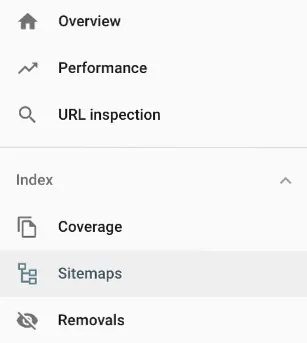
Navigate to the sitemap, and then add in your Shopify sitemap URL. All you need to add is the main URL ([https://yourdomain.com/sitemap.xml](https://yourdomain.com/sitemap.xml)) and Google will crawl all of the sitemaps for each category.
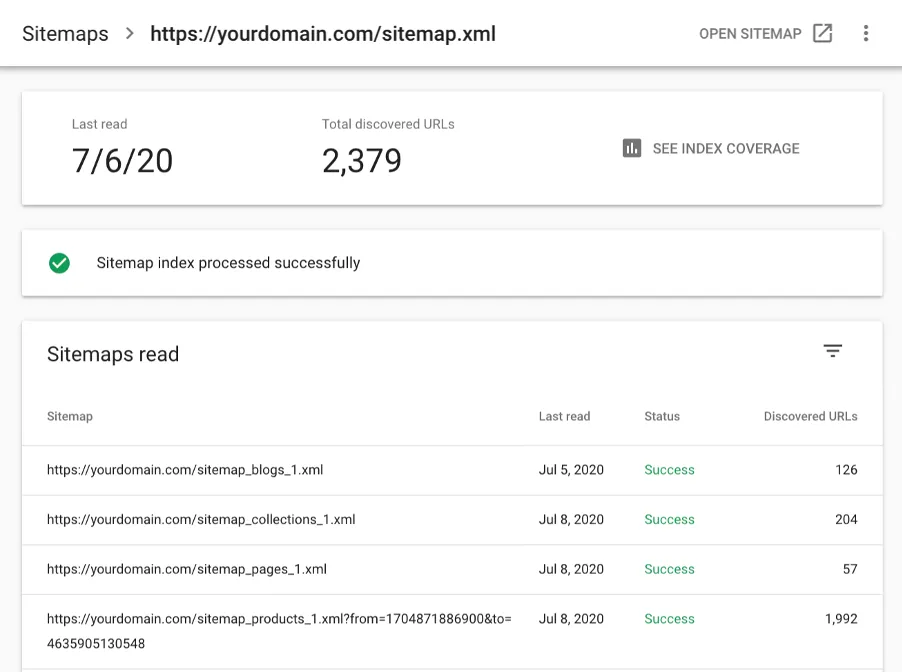
_**Common Problem:**_ For whatever reason, one of the subsections won’t appear in your Google Search Console. To fix this, submit that sitemap URL separately again. You can check to see if any of your subsections haven’t been crawled correctly by clicking on the submitted sitemap, like the image below, and seeing which URLs have been discovered.
## Forced Shopify URL Structure
Shopify sites are structured in a particular way, and for many people this isn’t going to be a huge deal.
Every webpage created on a Shopify site will have a folder that you can’t alter or control. If you like to get very specific about how you name and organise the URLs, this may not be for you.
- _your-domain.com/collections/antique-dolls_
- _your-domain.com/blogs/best-antique-dolls_
- _your-domain.com/products/antique-maryjane-doll_
- _your-domain.com/pages/faqs_
_So Shopify won’t let me redirect a page?_
You can’t redirect a page that still exists in your Shopify backend. For example, if you want to change the URL slug of a collection, Shopify will automatically give you a box to tick that says _"Create a URL redirect for 'old collection page name”→'new collection page name”_
## Duplicate product URLs
Shopify has a known quirk where products are accessible at multiple URLs:
- _your-domain.com/products/antique-maryjane-doll_
- _your-domain.com/collections/antique-dolls/products/antique-maryjane-doll_
Both URLs resolve. Both serve the same content. By default, Shopify handles this with canonical tags that point to the clean /products/ version, which is the right call.
The problem shows up when themes or apps override the canonical logic, or when internal links from collection pages use the longer /collections/X/products/Y format. When that happens, you end up with duplicate URLs being crawled, link equity split between versions, and the canonical signal getting muddied.
### How to check
View source on a few product pages accessed via collections and confirm the canonical tag is pointing to the clean /products/ version. Then check your collection template (usually product-grid-item.liquid or similar) to see whether internal links are using within: collection or linking directly to the product URL. For cleaner internal linking, link directly to /products/X rather than the nested version.
## Meta titles and descriptions at scale
Shopify lets you edit meta titles and descriptions on every page, but there's no native way to apply rules or templates across products or collections in bulk. For stores with 500 or 5,000 products, that's a problem.
There are a few ways to handle this:
- Use a bulk editing app like Smart SEO, SearchPie or Yoast SEO for Shopify to apply templated meta data across product and collection pages
- Edit the theme's and meta description logic directly in theme.liquid to apply conditional templates based on page type
- For enterprise stores, export your product catalogue, write meta data in bulk using a spreadsheet or AI-assisted workflow, then re-import via CSV or the Shopify API
Whatever you choose, avoid the default Shopify fallback of using just the product title as the meta title. It leaves money on the table.
### Why does this matter?
We always want Google to be able to understand your site structure as quickly, and easily as possible. As a part of this, what you want to ensure is that it’s very clear WHICH page (collection, product etc) should be appearing. So we don’t want to have a ton of empty, obsolete /collection pages still floating around being indexed if they aren’t providing value for your site.
For example, let’s say you sell antique dolls;
In the process, you originally have created four /collections for your types of dolls.
1. /collections/girls-antique-dolls
2. /collections/boys-antique-dolls
3. /collections/adult-antique-dolls
4. /collections/child-antique-dolls
After some time however, you realise what people are _actually_ interested in is the fact they are antique and realise you want to consolidate all these collections into the one /collections/antique-dolls.
You have two options:

### Option 1
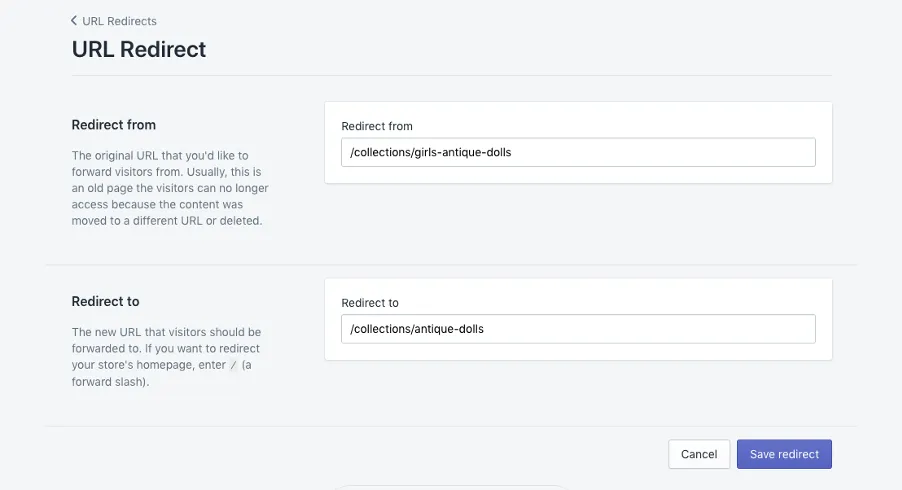
Rename one of these collections (and redirect the original), and then manually delete all the others. Then head to the left hand menu >> _Navigation >> URL Redirects_ and add in the URL slugs of the freshly deleted collections
### Option 2
Create an entirely new collection, then manually delete all four collections, then go to the left hand menu >> _Navigation >> URL Redirects_ and add in the URL slugs of the freshly deleted collections.
## Make sure your MyShopify Domain isn’t being indexed by Google
Every Shopify store comes with a default myshopify domain, which will appear as your-store-name.myshopify.com. You use this name to log in to your store. You can also check what yours is by looking at the URL for your site when you’re logged in.

When you add your custom domain for your store, you need to set your primary domain in Shopify’s backend. When you do this, ensure that the option “Traffic from all your domains redirects to this primary domain” is enabled.
### Manually check you don’t have any myshopify pages indexed
Do a site search in google for your myshopify domain to check there are no indexed pages. To do this go to Google and enter site: your-store-name.myshopify.com
Simply entering site:myshopify.com returns over millions of results!
## JavaScript-heavy themes and rendering issues
Modern Shopify themes, particularly Online Store 2.0 themes and custom Hydrogen builds, lean heavily on JavaScript. That's fine for Google most of the time, but it creates two real risks.
First, Google renders JavaScript in a second pass, which means heavily JS-dependent content can be delayed in getting indexed or missed entirely if rendering fails.
Second, other search engines and AI crawlers don't render JavaScript as reliably as Google. Bing has improved, but ChatGPT's crawler, Perplexity's crawler and others often see an empty page where your product content should be.
### What to check
Pull a product page in Google Search Console's URL Inspection tool and look at the rendered HTML. Key content like product descriptions, pricing and reviews should be in the raw HTML, not injected via JavaScript. For AI visibility in particular, server-side rendering of product content is becoming non-negotiable.
## The /products.json endpoint
Every Shopify store exposes a public JSON feed of its products at your-domain.com/products.json. It's genuinely useful for developers and integrations, but it also means competitors can scrape your full product catalogue with a single URL, and it occasionally gets indexed by Google.
You can't disable the endpoint entirely without breaking apps that depend on it, but you can block it in robots.txt now that you have access:
_User-agent: \* Disallow: /products.json_
This is one of the most common things we see missed on Shopify audits. Worth five minutes to check.
## AI search and crawler considerations
Shopify's default theme setup is built around Google. That leaves gaps when it comes to AI search platforms like ChatGPT, Perplexity, Claude and Google's AI Overviews, which are increasingly sending traffic to eCommerce sites.
A few things worth doing:
- **Check your structured data.** Shopify themes vary wildly in how well they implement Product, Offer, Review and BreadcrumbList schema. AI platforms lean heavily on structured data to understand and cite product information. Test your product pages in Google's Rich Results Test and fix gaps.
- **Decide how to handle AI crawlers in robots.txt.** You can now allow or block GPTBot, ClaudeBot, PerplexityBot and others. There's a trade-off here: blocking them protects your content but makes you invisible in their answers. Most eCommerce brands should be allowing the major ones.
- **Consider an llms.txt file.** It's not a standard yet, but an increasing number of AI platforms are starting to respect it as a way to declare what your site is and what's worth referencing.
- **Make sure product content is server-rendered** (see the JavaScript section above). AI crawlers are even less forgiving than Google on this.
AI search is still a small percentage of traffic for most Shopify stores, but the trajectory is unmistakable. Getting the fundamentals right now is a lot cheaper than catching up later.
## Final thoughts
Like every platform, Shopify has its limitations, both functional and technical. That said, it's a fantastic platform overall, and one we've worked within for years to get sites performing at their peak.
Knowing these quirks and how to work around them puts you one step ahead of most Shopify stores, and a long way ahead of the ones still running default theme settings.
If you're running a Shopify store and want a proper technical audit, [get in touch](https://www.optimising.com.au/contact). We're a Shopify Plus Partner agency and we've migrated or optimised some of Australia's biggest Shopify stores.
Let me know if you want me to tighten any section, change the ordering, or draft the updated meta description now that the scope of the piece has broadened.

### Get your Shopify store firing
We're a Shopify Plus Partner agency and we've migrated or optimised some of Australia's biggest Shopify stores. If you want someone to look under the hood and find the gains, we're the real deal.
[Work with us](/contact)

### James Richardson
Co-Founder
James Richardson is one of the co-founders of Optimising, that he started in 2008. He's spent nearly two decades helping Australian brands get found online, from technical SEO and platform migrations through to AI search.
Outside work, he's usually on the basketball court or golf course or being comprehensively outsmarted by his three daughters.
[← Back to Blog](/blog)